The Safe Way to Grant Facebook & Instagram Access (Without Sharing Passwords)
Stop before you text your Instagram password or login email to your social media manager. At WebNeuro Inc., we take digital security seriously.
Joseph Tadros··7 min read
Stop before you text your Instagram password or login email to your social media manager.
At WebNeuro Inc., we take digital security seriously. One of the most common mistakes business owners make is sharing their personal Instagram or Facebook login credentials with agencies and employees.
Sharing login information creates an unnecessary security risk. Sign-ins from unfamiliar locations or devices may also trigger security checks and make it harder to access your account.
Meta Business Suite allows you to give an employee or agency access to a professional Instagram account without sharing the account’s password, login email, recovery codes, or two-factor authentication codes.
Can You Give Someone Instagram Access Without Sharing Your Password or Email?
Yes. If your professional Instagram account is connected to a Meta Business Portfolio, you can assign access through Meta Business Suite.
An agency can be added as a Partner using its Meta Business ID. An employee can be added under People using the employee’s own work email address.
In both cases, you do not share the email address or password used to sign in to Instagram. The person uses their own Meta account to work on the business assets and tasks you assign. Available permissions may include content, messages, comments, advertising, and insights.
The Short Answer
For agencies Use the Partner method and the agency’s Meta Business ID.
For employees Use the People method and the employee’s own work email.
For Instagram access Connect the professional Instagram account and assign it as a business asset.
Keep full control The business owner should remain an administrator with full control.
Limit permissions Give only the access required for the person’s or agency’s work.
Protect credentials Never share passwords, recovery codes, or two-factor authentication codes.
Two ways to grant controlled Facebook and Instagram access through Meta Business Suite while keeping account credentials private.
Method 1: Add WebNeuro Using the Partner Method
Best for agencies, advertising and social media management
The Partner method connects your Meta Business Portfolio to the agency’s portfolio while allowing you to control which assets and permissions the agency receives.
Before you begin: Ask the agency for its Meta Business Portfolio ID.
WebNeuro Business ID: [Insert WebNeuro Business ID]
Open Meta Business Settings
Sign in at Meta Business Suite and select the correct business portfolio. Open Settings or Business Settings. Meta may use slightly different labels depending on your account and interface.
Find the Partners Section
In the left-hand menu, locate Users and select Partners. You generally need full control of the business portfolio to add a partner.
Add the Agency
Select Add, then choose Give a partner access to your assets. This allows the agency to access selected assets from its own Meta Business Portfolio.
Enter the Agency’s Business ID
Enter the Meta Business ID provided by WebNeuro and select Next. A Business ID identifies the agency’s portfolio; it is not an Instagram password, email address, or security code.
Assign the Required Assets
Instagram accounts: Select the appropriate Instagram profile.
Facebook Pages: Select the connected Page if Facebook management is included.
Ad accounts: Select the relevant account if WebNeuro will manage advertising.
Other assets: Assign only what the agreed service requires.
Instagram access may need to be assigned separately, even when the account is connected to a Facebook Page.
Choose the Permissions
Creating and publishing content
Responding to comments or messages
Viewing account insights
Creating or managing advertisements
Reviewing account activity
Avoid granting full control when task-specific access is sufficient.
Confirm the Assignment
Review the selected assets and permissions. Select Assign Assets, Save Changes, or the equivalent confirmation button. WebNeuro can then work through its own portfolio without receiving your login credentials or security codes.
Need Help Setting Up Secure Meta Access?
WebNeuro can guide clients through the correct Partner setup without asking for Instagram passwords, recovery codes, or authentication codes.
Contact WebNeuro Discuss Your Project
Method 2: Add an Employee Using the People Method
Best for an internal social media manager, marketing employee, office manager or receptionist
The employee receives an invitation at their own work email address and signs in using their own Meta account.
Open Business Settings
Go to your Meta Business Portfolio and select Users > People.
Invite the Employee
Select Invite People.
Enter the Employee’s Work Email
Enter the employee’s own work email address. It is used to send the invitation and does not need to be the email connected to your Instagram account.
Choose an Access Level
Partial access: Suitable for publishing content, replying to messages, managing comments or ads, and viewing insights.
Full control: For trusted administrators who need to manage settings, assets, people, and permissions.
Limit full control because it may allow a person to make significant changes to the portfolio.
Assign the Instagram Account
Select the relevant Instagram account from your business assets and choose the specific tasks the employee needs. Do not provide unrelated permissions.
Assign Other Assets if Required
You may also assign the connected Facebook Page or advertising account when these assets are required for the employee’s work.
Send the Invitation
Review the permissions and send the invitation. Once accepted, the employee can use their own Meta credentials to work on the assigned Instagram account.
Common Issues and Troubleshooting
“I Don’t See My Instagram Account”
Open Business Settings, go to Accounts > Instagram accounts, and select Add. The owner may need to sign in once for the initial connection. Then return to People or Partners and assign permissions.
“Instagram Access Was Not Added Automatically”
Facebook Page access does not always provide every Instagram permission. Open the person’s or partner’s details, select Assign Assets, choose the Instagram account, and enable the required permissions.
“I Can’t Access Business Settings”
Look for the Settings gear and open More Business Settings or the portfolio’s advanced settings. If People or Partners is unavailable, ask the current portfolio administrator to review your access.
“Do I Have to Give the Agency My Email?”
No. The Partner method generally uses the agency’s Meta Business ID. The agency then works through its own Meta accounts.
“Do I Need to Share a Two-Factor Authentication Code?”
No. Never provide passwords, recovery codes, or two-factor authentication codes. Each authorized user should use their own account and security credentials.
“How Do I Remove Someone?”
Open Business Settings.
Select Users > People or Users > Partners.
Select the person or partner.
Review assigned assets.
Remove the assets or select Remove.
Confirm the change.
Good practice: Review permissions regularly and promptly remove employees or service providers who no longer require access.
Frequently Asked Questions
Can I give someone access to Instagram without giving them my password?
Yes. For a professional Instagram account, assign access through Meta Business Suite. The authorized person uses their own Meta account instead of your Instagram password.
Can I give Instagram access without sharing my login email?
Yes. An agency can be added using its Business ID, while an employee can be invited using the employee’s own work email.
Can I provide access without using any email address?
The Partner method uses an agency’s Meta Business ID and does not require your Instagram login email. The People method requires the employee’s email for the invitation, but not the email connected to Instagram.
What is the safest way to give an agency access to Instagram?
Add the agency as a Partner in Meta Business Suite, assign only the required Instagram assets and permissions, and never share passwords, recovery codes, or authentication codes.
Does Facebook Page access automatically include Instagram access?
Not always. Even when the Page and Instagram account are connected, you may need to assign the Instagram account separately as a business asset.
What permissions should I give a social media manager?
Provide only what their responsibilities require, such as content, messages, comments, ads, or insights. Reserve full control for trusted owners and administrators.
Can I remove someone’s Instagram access later?
Yes. Open Meta Business Settings, select the person or partner, and remove the Instagram asset or the user from the business portfolio.
Does this work with a personal Instagram account?
These permissions are primarily for professional Instagram accounts and connected business assets. A personal account may need to be converted to an eligible professional account first.
Still Stuck in the Meta Maze?
Meta changes its menus and permission settings frequently. If you are a WebNeuro client and encounter an error, take a screenshot that does not reveal passwords, recovery codes, authentication codes, or sensitive personal information.
Send it to your WebNeuro account manager or email support@violet-dugong-850420.hostingersite.com, and our team can help guide you through the remaining steps.
Contact WebNeuro Review Meta Security Guidance
Meta may change the names and locations of Business Suite permission settings.
About the authorJoseph TadrosCo-Founder of WebNeuro
Joseph Tadros is a co-founder of WebNeuro Inc., a Calgary-based website development and digital marketing company that helps clinics, pharmacies and professional firms get found online.
Morefromtheblog
AI & Analytics
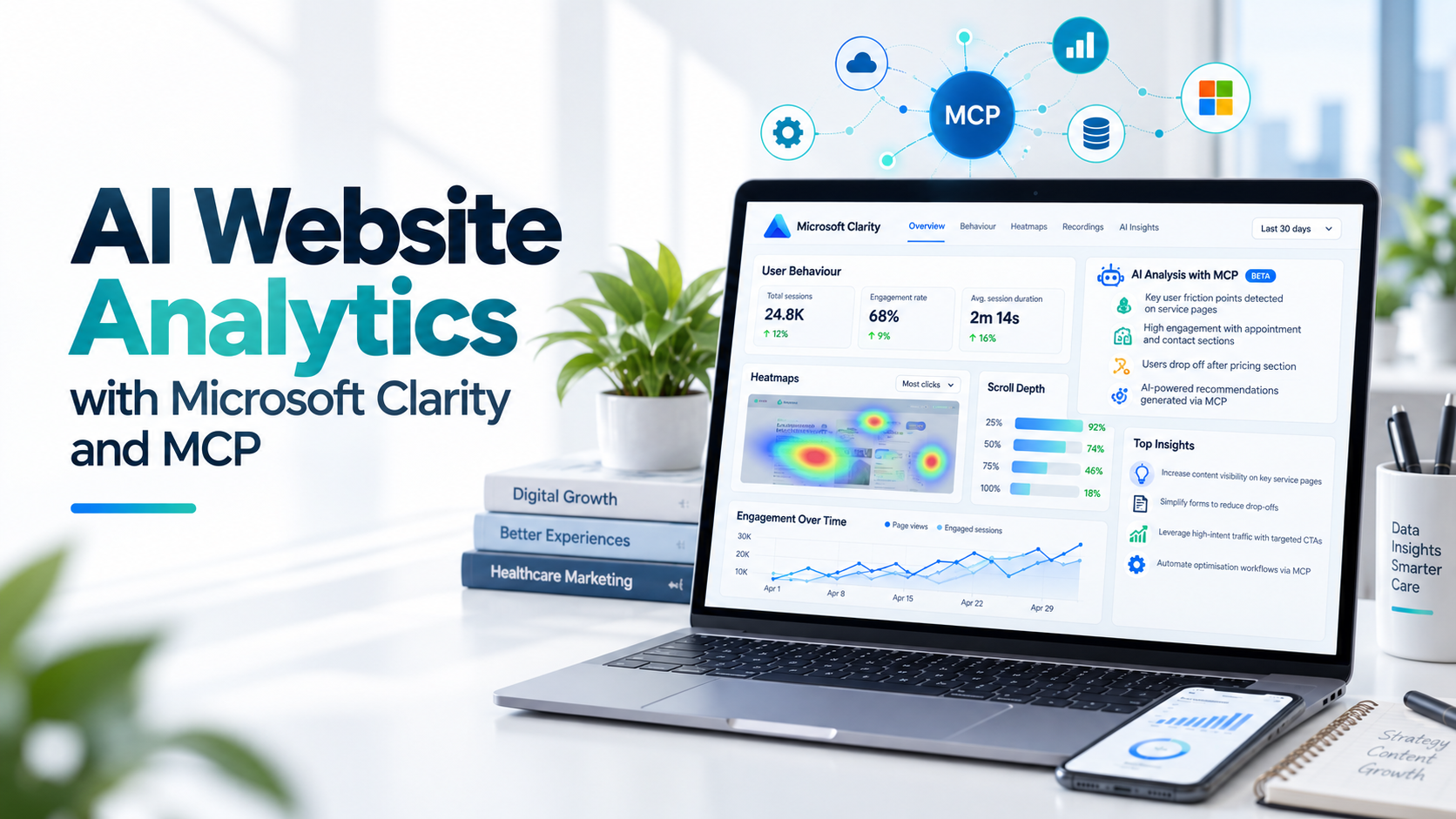
AI Website Analytics with Microsoft Clarity and MCP
Sep 8, 2026
7 min read
Joseph Tadros
AI-assisted analytics can retrieve permitted website data, identify patterns, compare visitor segments, and organize findings into actionable reports.
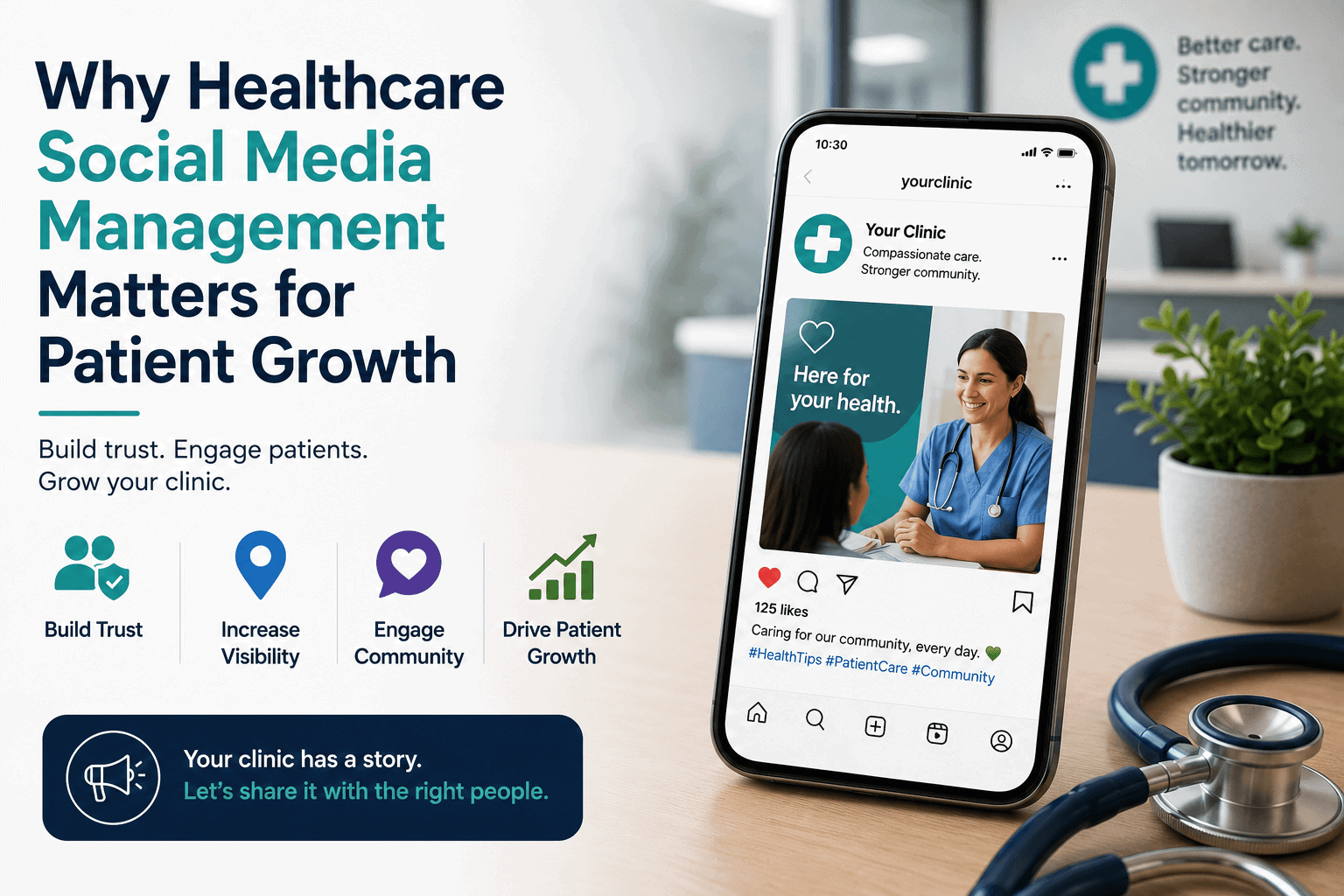
Why Healthcare Social Media Management Matters for Patient Growth
Jul 22, 2026
6 min read
Joseph Tadros
Health care social media management is the planning, creation, publishing, and monitoring of social content for clinics, medical practices, wellness providers…