How to Manage Your WebNeuro Subscription & Auto-Renew Settings
We designed our subscription system to be simple, transparent, and hassle-free, so you can focus on your business while we handle your website.
Joseph Tadros··3 min read
Welcome to WebNeuro Inc.! We're thrilled to be your partner in digital growth.
We designed our subscription system to be simple, transparent, and hassle-free, so you can focus on your business while we handle your website. A key part of this is our automated renewal system, which ensures your website, SEO, or social media services continue seamlessly without interruption.
This guide will walk you through exactly how the "Auto Renew" feature works when you first sign up and how you can manage it anytime from your account dashboard.
How "Auto Renew" Works When You First Sign Up
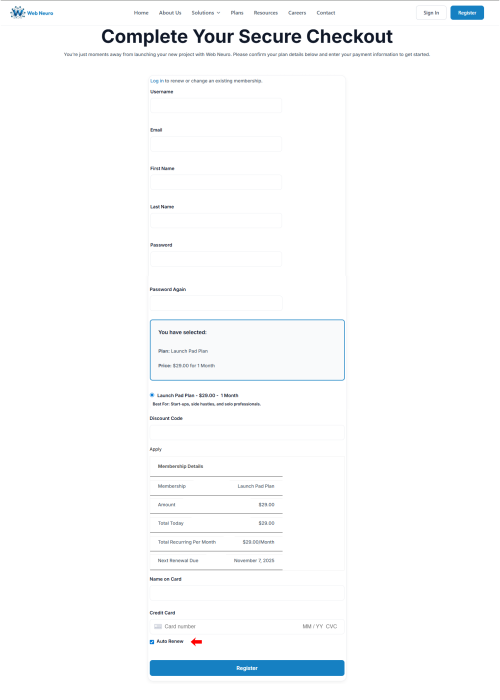
When you select one of our plans and go to the checkout page, you are setting up a recurring subscription. Towards the bottom of the form, you will see a simple and important checkbox.
The "Auto Renew" checkbox is located just above the payment section on the checkout page.
What This Means:
When Checked (Default): You authorize a recurring subscription. Our secure payment partner, Stripe, will automatically charge your card on the "Next Renewal Due" date. This is the recommended option to ensure your services remain active without any interruption.
When Unchecked: Your plan becomes a one-time purchase. Your service will expire at the end of the current billing period. To continue, you would need to manually log in and renew.
How to Manage Your Settings (For Existing Customers)
You are always in full control of your subscription. Here are the step-by-step instructions to manage your auto-renew settings from your account dashboard.
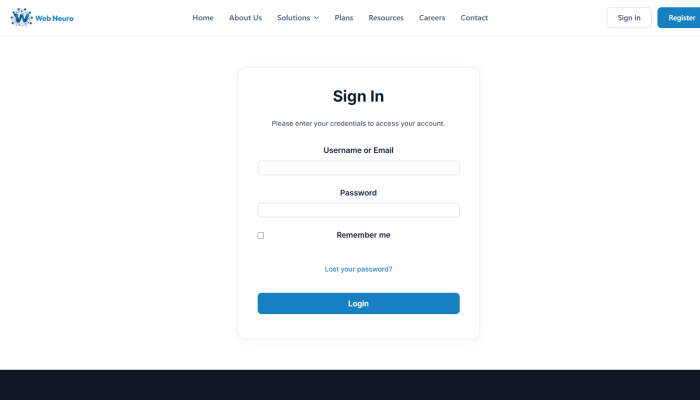
Sign In to Your Account Navigate to `violet-dugong-850420.hostingersite.com` and click the "Sign In" link in the main menu to enter your credentials. Use the email and password you created during registration to sign in.
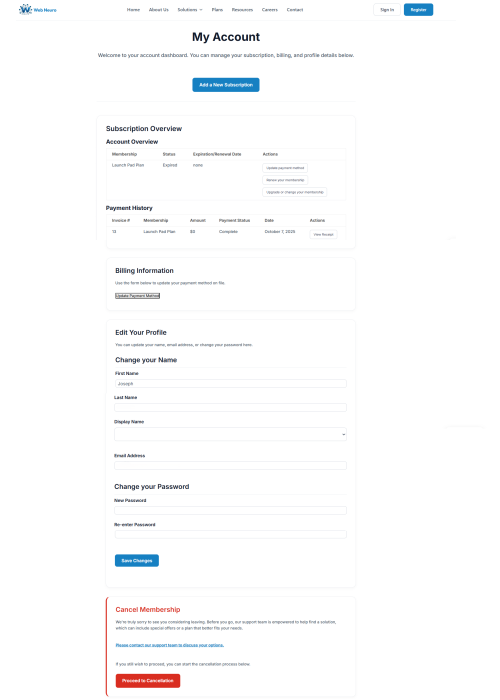
Go to Your Account Dashboard Once logged in, you will be on your main "My Account" dashboard. This is where you can manage your subscription, view payment history, and update your profile details. Your dashboard provides a complete overview of your account status.
Manage Auto-Renew Settings In the "Subscription Overview" section, you will see your active plan. Look for an "Auto Renew" toggle switch or checkbox next to your subscription details. You can turn it on or off at any time.
Save Your Changes Be sure to click any "Save" or "Update" button if one is present. The change will take effect immediately for your next billing cycle.
Frequently Asked Questions (FAQ)
Q: What happens if my automatic payment fails?
A: If your card on file expires or a payment fails, our system will typically attempt the charge a few more times. You will receive an automated email notification about the issue so you can update your payment information in your Account Dashboard. Your website will not go down immediately.
Q: Will I be notified before my subscription renews?
A: Yes. Our system automatically sends a reminder email a few days before your renewal date, so you are never surprised by a charge.
Q: How do I update my credit card information?
A: You can update your payment method at any time in the same "Account/Subscription" section of our website. All payment in
About the authorJoseph TadrosCo-Founder of WebNeuro
Joseph Tadros is a co-founder of WebNeuro Inc., a Calgary-based website development and digital marketing company that helps clinics, pharmacies and professional firms get found online.
Morefromtheblog
AI & Analytics
AI Website Analytics with Microsoft Clarity and MCP
Sep 8, 2026
7 min read
Joseph Tadros
AI-assisted analytics can retrieve permitted website data, identify patterns, compare visitor segments, and organize findings into actionable reports.
Why Healthcare Social Media Management Matters for Patient Growth
Jul 22, 2026
6 min read
Joseph Tadros
Health care social media management is the planning, creation, publishing, and monitoring of social content for clinics, medical practices, wellness providers…