Learn how to find, claim and verify a ChatGPT business profile, invite WebNeuro and check availability for Canadian clinics, pharmacies and other businesses.
WebNeuro Inc.··4 min read
In brief
Open ChatGPT Business Hub, find your business and choose a verification option. Complete the identity check when asked. Once approved, you can invite WebNeuro to help manage the profile.
When someone asks ChatGPT about a business, the answer may include a profile they can open for more information. OpenAI launched this feature in beta on November 10, 2026. In Business Hub, eligible owners and managers can claim their listing, update business details and see how often people click through to their website.
Check whether your business is eligible
OpenAI looks at your location, business type and available verification methods. An Edmonton IT company reported claiming its listing, but Canadian clinics and pharmacies should check their own eligibility. OpenAI currently says local stores and restaurants can only claim an existing U.S. listing. Start by searching for your business in Business Hub.
Before you start, have your public business name, website and address handy. The person signing in to ChatGPT must own the business or have permission to represent it. An Ads account or ChatGPT Enterprise agreement is optional.
Search for the name customers know you by. Compare the website and address before selecting a result. If your business has multiple locations, confirm which location the result represents.
Select the matching listing and confirm which ChatGPT account will manage it. If the listing is missing, try a common variation of your business name. Use Add business only if Business Hub offers it and there is no existing match.
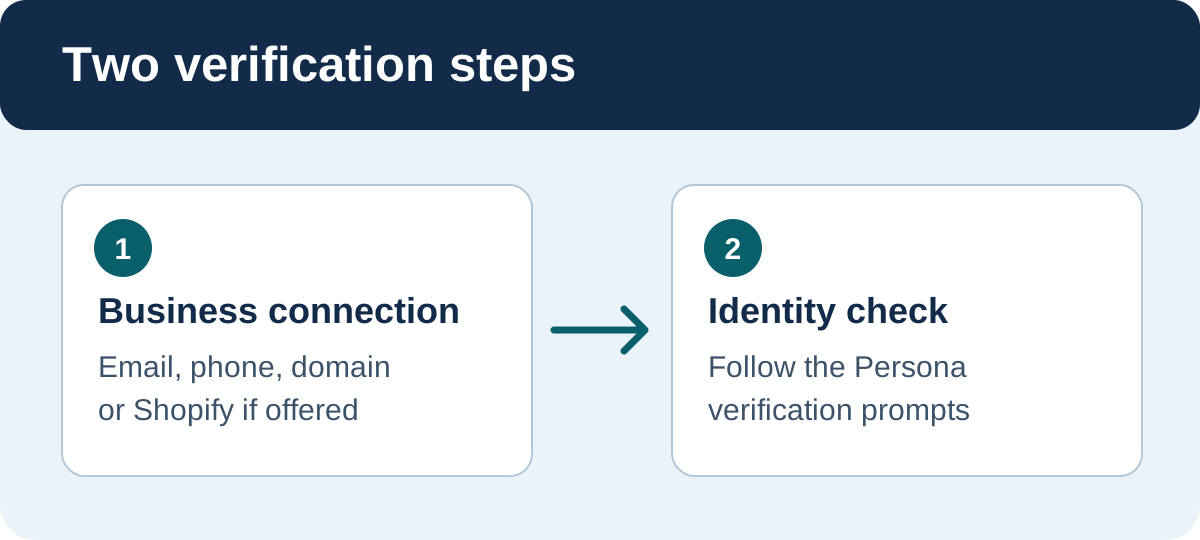
2. Confirm your connection to the business
Choose a method Business Hub actually offers for your listing. The options vary by business.
Business email or phone. Receive and enter a code using the contact details shown. Phone verification may offer a text or automated call.
Website domain. Business Hub gives you a TXT record to add to your domain’s DNS settings. If WebNeuro manages your domain, we can help add it. Return to Business Hub and complete the domain check after the record is available.
Shopify. If this option appears, follow the prompts to connect the eligible store.
Business Hub may ask you to verify both your connection to the business and your identity.
3. Complete identity verification through Persona
When prompted, open the Business tab, select your profile and follow the Persona verification instructions. A successful email, phone or domain check confirms your connection to the business. OpenAI also requires Persona approval to publish changes and access insights.
You may need a government-issued ID, business registration information and proof that you can represent the business. Enter your legal business name as shown on your registration documents. Use the separate trade name field if it applies. Submit documents through the verification screen. OpenAI emails you with its decision or asks for more information.
If you create a new profile through Persona, OpenAI says approval publishes it automatically. Review the details before submitting. When Persona verification is approved, the listing can show a blue verification badge.
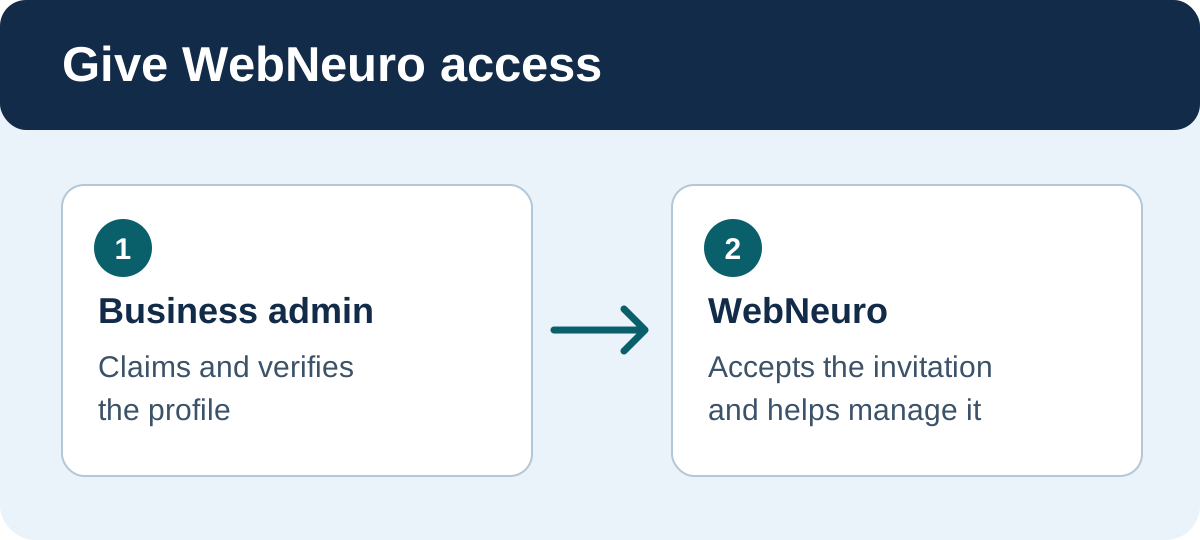
4. Invite WebNeuro to manage the profile
Once approved, the admin who claimed the listing can open its business overview, select Invite and enter support@webneuro.ca. If Business Hub cannot find that address or your workspace restricts the invitation, email us so we can confirm the account to invite. Each collaborator signs in with their own ChatGPT account.
Your business keeps admin control when you invite WebNeuro.
What to review after your profile is approved
Start with the details someone needs before they contact you. Keep them consistent across your website, Google Business Profile and ChatGPT business profile, where those fields are available.
For clinics, confirm the correct location, phone number, hours, booking link and whether you accept walk-ins or new patients. Update time-sensitive details when they change.
For pharmacies, check location hours, contact information and which services are available at that location. Link to a page that explains how to access those services.
Write a clear description of what you do, who you serve and where. Use an accurate category and a current logo or photo you have permission to publish.
Review mentions and website clicks in Business Hub if available. The dashboard shows aggregate data over 28 days. Treat a blank metric as unavailable because reporting thresholds may apply.
Claiming gives you a way to manage the information you provide to OpenAI. ChatGPT can also use other sources and continues to make its own recommendations. OpenAI does not guarantee more mentions or a higher placement after you claim a profile.
Is a ChatGPT business profile part of the ChatGPT Business subscription?
The profile is a public-facing listing managed through Business Hub. ChatGPT Business is a separate workspace subscription.
Can a Canadian clinic or pharmacy claim a profile?
Eligibility depends on business type, location and available verification. Search for the actual business in Business Hub and follow the options it offers.
Do I need to run ads or set up a Business Agent?
No. You can manage an eligible business profile without advertising or creating a Business Agent. Agents have their own eligibility rules.
About the authorWebNeuro Inc.
WebNeuro is a Calgary digital marketing and web development company that works with clinics, pharmacies and professional firms.
Morefromtheblog
Website Design
Website Redesign Checklist for Canadian Municipalities and Public Organizations
Nov 18, 2026
8 min read
WebNeuro Inc.
Use this municipal website redesign checklist to plan accessibility, content, privacy, SEO migration, procurement and launch for your Canadian public organization.